Configuration
Open the Configuration page to tune and customize your deployment. Click the settings icon on the navigation toolbar. The page displays all configuration parameters, grouped into configsets. The system’s multiple tenancy capability uses scopes to partition the system. Each scope has its own configsets. Configsets are not shared between scopes. Click the drop down at the top of the page to switch between scopes.
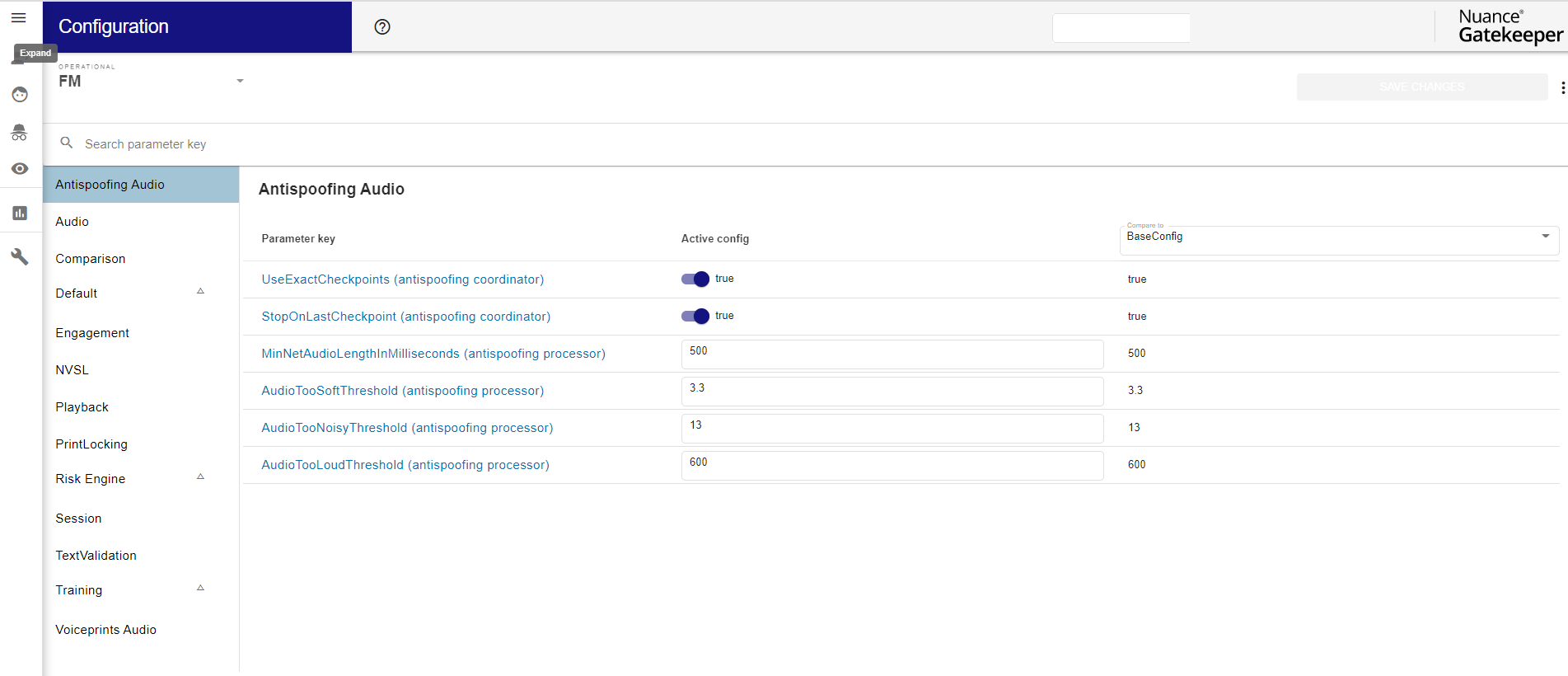
Select the config set you want to work on from those available in the config set drop down. Config sets are divided into the following types according to the level at which their parameters are set:
- Operational-Contains all operational parameters. You can create any number of operational config sets in a scope. API invocations and biometrics applications frequently specify different operational config sets for different purposes.
- Scope-Contains all scope parameters. The changes are applied to all scope activities. There is one scope config set for each scope, it has the same name as the scope, and cannot be cloned.
Configuration parameters are categorized using tags, where each parameter can have one or more tags. The Tags menu appears on the left side of the page. Click the tag to see the parameters that are associated with it. Sometimes configuration parameters from different modules have the same name. The configuration page displays these parameters with the module name as a suffix. You can perform the following actions:
- Edit the parameters according to your deployment needs and save your changes. Use the search to find the parameter you want to modify.
- Hover over or click the parameter to view its description. The web application redirects you to the documentation.
- Use the Action menu at the top right side of the page to create a new configset, delete a configset, or clone one.
- Transfer a configset from one scope to another by downloading it to a file, switching to a different scope, and then uploading the file. Upload and Download are available in the Configset action menu.
- Modify the configset description. Every configset is associated with a context. This is a free-text field that describes the purpose and usage of the configset. In the Action menu, select Change description to modify the configset context.
- View configuration parameter changes by selecting a snapshot from the Compare to drop down to the right of the configuration parameter list. The Tag menu highlights parameters that are different in the selected snapshot. Alternatively, click View History to see all past changes with additional details (including date and time of change, user that performed the change, and more). You can restore to a specific snapshot or delete the snapshot itself.
- Compare to other config sets by selecting a configset from the Compare to drop down to the right of the configuration parameter list. The Tag menu highlights parameters that are different in the selected configset.
- Rollback to a past snapshot by clicking Restore in the Action menu and selecting the desired snapshot.