Backward search
Backward search is a tool for revealing undetected fraud in previously collected audio. Use it to reveal fraudsters who tried to access your system previously (and maybe succeeded). The feature is called backward search because it reviews historical data to re-calculate decision verdicts and risk scores.
The general workflow is as follows:
- Add new fraudster voiceprints to watchlists.
- Run a backward search job to find the fraudsters in historical engagements.
- Review the temporary results. The system displays a flag to signal the affected engagements. (The flag appears on the left side of each affected row.)
- Publish the results for affected engagements, as appropriate. (Click the flag to publish.)
- Mark the job as Reviewed.
Create a backward search job
To create a job, use the Analyst Overview dashboard:
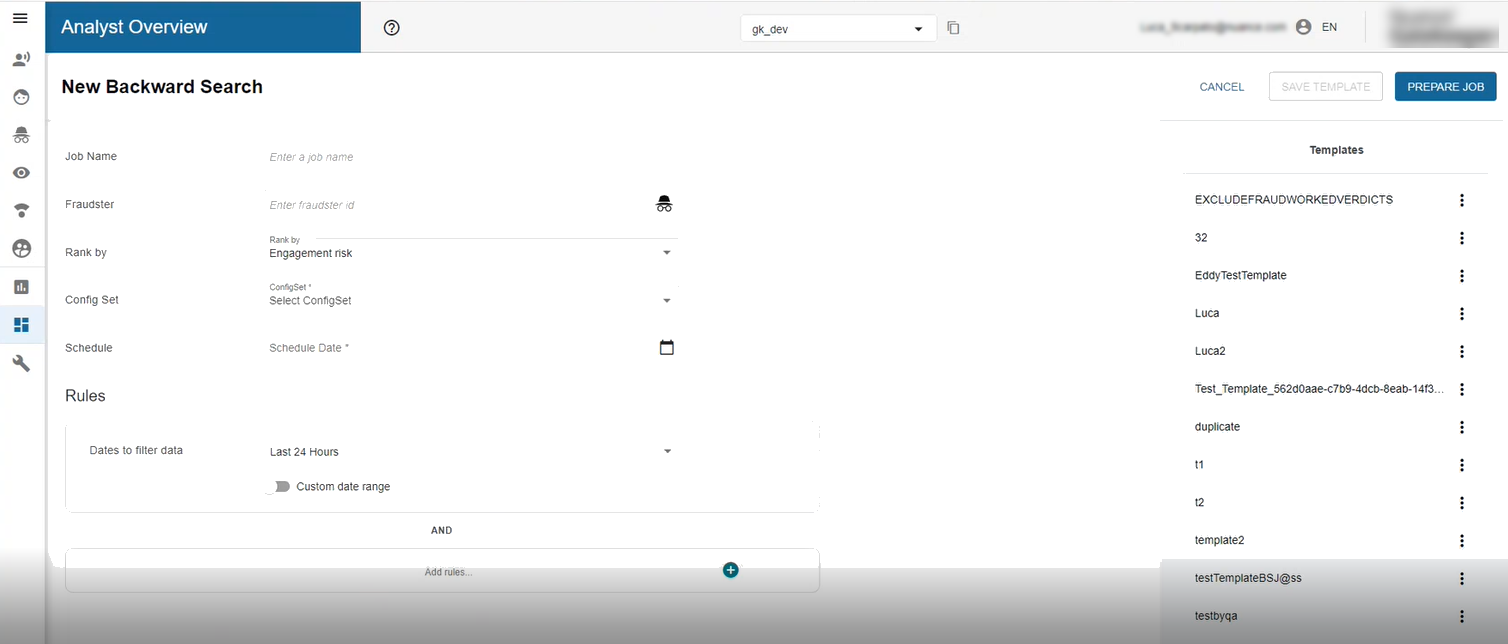
- Click CREATE JOB (top right) and select Backward Search.
- Optional. Select a template to populate the search fields: under Templates, click the three dots beside the template to use, then click Load.
- Enter a name for the job. (Best practice: use any naming convention that helps to distinguish jobs in a meaningful way.)
- Enter a fraudster ID (must already exist).
- Recommended. Set the rank criteria.
- Engagement risk: global-level search. Best practice when using this criteria: customize the search to ignore previously-identified fraudulent engagements. Otherwise, previously-identified high-risk engagements will tend to obscure new fraud possibilities. One way to customize is to use the default template. The other way is to create a rule with the logic: Engagement Decision not equals Fraud.
- Voiceprint biometric score: low-level search. This is usually the best choice. It uses raw scores from the biometrics engine (and thus focuses on the backward search factor without bias from other risk assessments).
- Factor risk: factor-level search. Seldom used.
- Select a configuration set.
- Schedule a date and recurrence.
- Specify rules:
- Schedule a time period to filter the data.
- Select the type of engagement, media, and session for data extraction.
- Configure operators and values.
- Optional. Save the job as a template for later reuse.
Use templates
Use backwards search templates to speed the creation of new jobs. (The EXCLUDEFRAUDWORKEDVERDICTS template automatically removes previously identified fraud engagements and engagements with verdicts so they do not obscure new fraud possibilities in the search results.)
To create a template:
- Fill in the details for a cluster job from scratch or from modifying an existing template.
- Click Save Template.
- Name the template and click Save.
To use or delete a template, click the three-dot menu beside a template in the Templates panel. Available actions are as follows:
- Load Template: displays template parameters which you can modify or rename.
- Delete: removes the template (and related parameters) from the list.
View completed jobs
The dashboard displays completed searches.
Click the three-dot menu to take any of the following actions on any completed job:
- View job definition: see the job configuration
- Mark as reviewed: mark the job as reviewed
- View results: opens the search results
Click any job to see the results.
Review search results
When a backward search completes, click on the job to review the results. The display is a collection of historical engagements with new calculations for risk scores and decisions. These results are temporary until you take publish the changes.
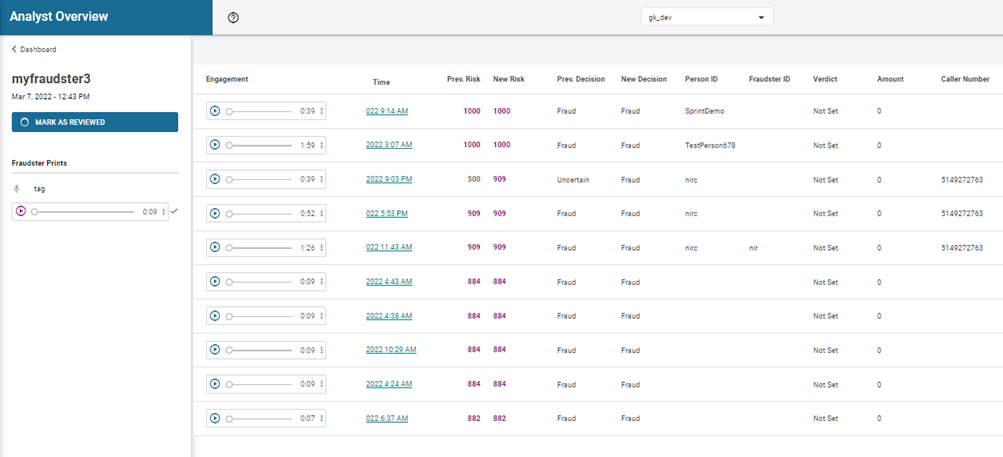
The following table describes the important columns in the display:
| Column | Description |
|---|---|
 |
Alert flag: indicates a newly detected fraud threat that is above the configured threshold. |
| Bio score | Raw engine score focused on the backward search factor. |
| Factor risk | Translation of bio score to the scale used by all risk factors. |
| Prev Eng Risk | Previously engagement risk (calculated before the backward search). |
| New Eng Risk | New engagement risk (calculated during the backward search). |
| Prev Decision | Fraud Assessment (calculated before the backward search). |
| New Decision | Fraud Assessment (calculated during the backward search). |
Click the three-dot menu on the right side of any audio sample. A menu opens with the following options:
- Play audio file: listen to the audio for clues about authenticity
- Copy: copy the audio to your paste buffer
- Download audio file: save the audio to your file system for any reason
- Edit app data: add any text string to be associated with the audio sample
- Add to print: adapt the person’s voiceprint with the newly collected media
- Open the audio viewer: send the audio to the viewing tool
Publish changed engagements
To publish engagements that were found and changed by backward search, click the alert flag .
When you publish, you update the engagement as follows:
- A new backward search session with a new risk score is added to the engagement.
- The global engagement uses the new risk score to recalculates its overall risk score.
- The engagement verdict becomes “Not Set” (investigations are reopened if previously closed).